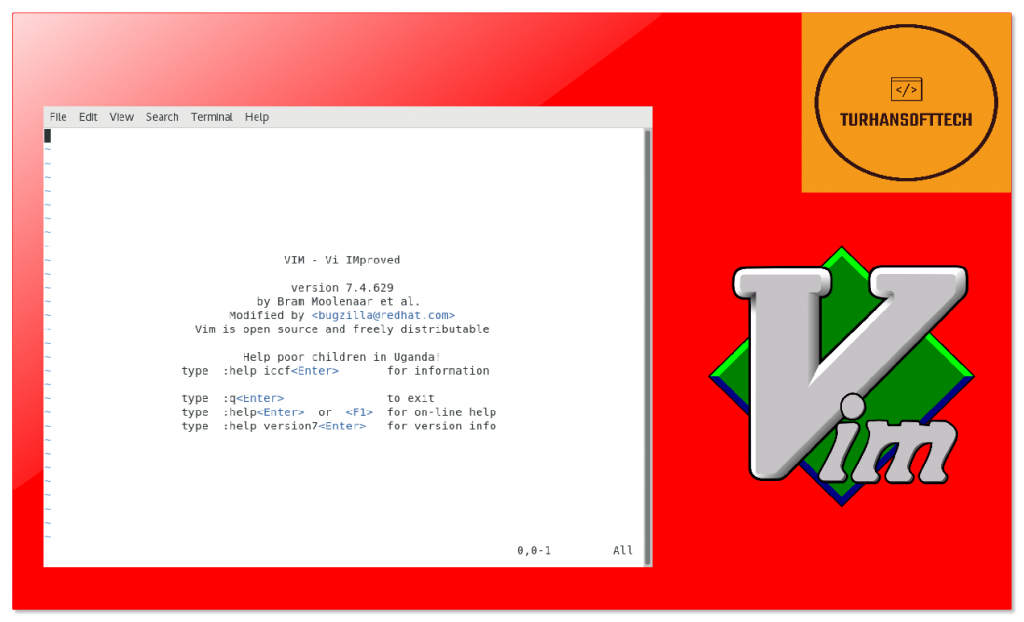
Vim: A potent text editor with a lot of customization options is called vim( Vi Improved). Despite its steep learning curve, it has many advanced features, such as a wide variety of editing commands, plugin support, and extensive customization options.
Emacs:Another robust text editor with a ton of features. Code editing, text formatting, file management, and more are just a few of the features it offers. The scripting language( Emacs Lisp), which is unique to eMacs, enables extensive extension and customization.
Nano: Many Linux distributions come pre-installed with Nano, a straightforward and user-friendly text editor. For beginners or users who prefer a more straightforward editing experience, it is an excellent option because of its simplicity of use and user interface.
Popular proprietary text editor,Sublime Text is renowned for its speed and adaptability. Numerous features, such as split editing, multiple cursors, syntax highlighting, and a thriving ecosystem of plugins and themes, are available.
Microsoft created the free source code editorVisual Studio Code( VS Code). With features like intelligent code completion, debugging, version control integration, and a sizable ecosystem of extensions, it offers an excellent editing experience.
İntroduction to vi Editor in Linux
In the Linux and Unix operating systems, vi is a potent and widely utilized text editor. It is well-known for its effectiveness and adaptability and has been around since the early days of Unix. System administrators, programmers, and advanced users who work primarily from the command line frequently choose vi because it runs in a terminal environment and doesn’t rely on graphical user interfaces.
What is the Difference Between Vi and Vim in Linux ?
Vim, which offers more features and functionality, is essentially an expanded and improved version of Vi. It is generally advised to use Vim if Vi is available on a Linux system because it has more features and an improved editing experience. For those who need to work in an environment that is strictly Vi-compatible or who prefer a lightweight, minimalistic editor, Vi is still an option.
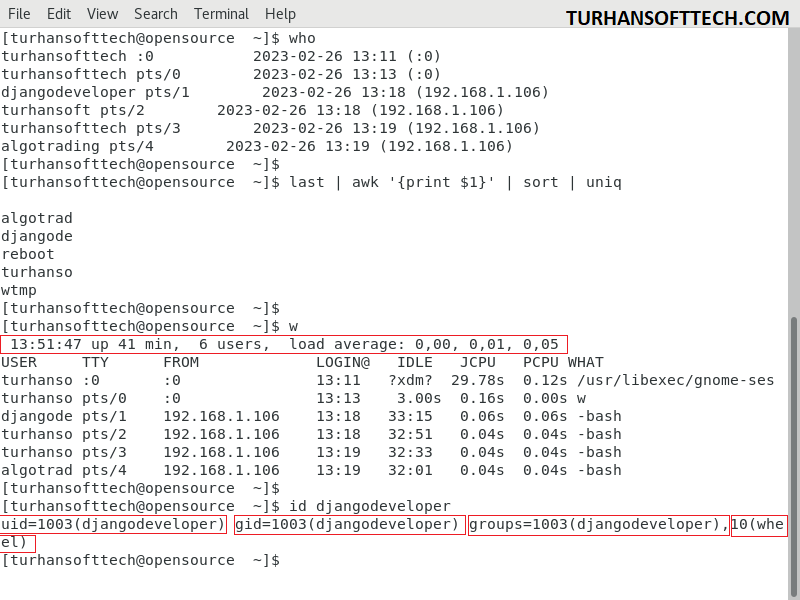
who
who -a
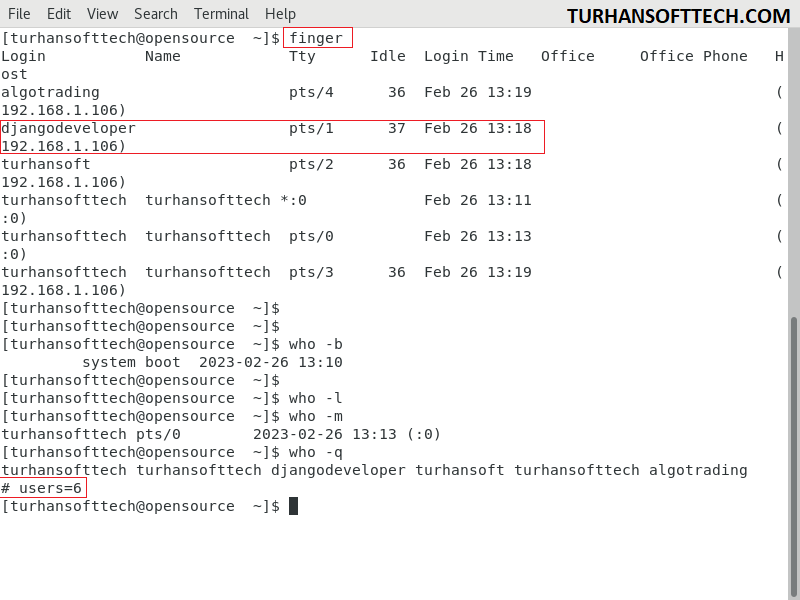
who -b
who -l
who -m
who -r
who -u
who -q
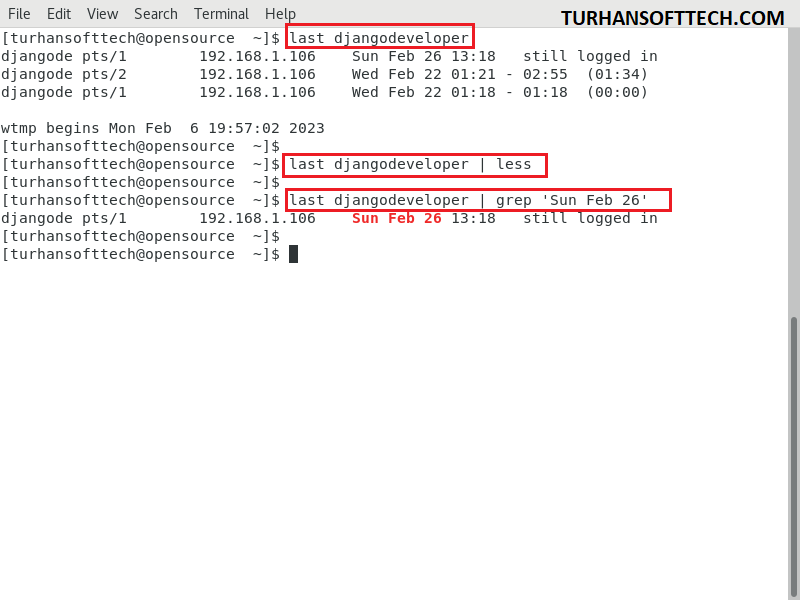
last reboot
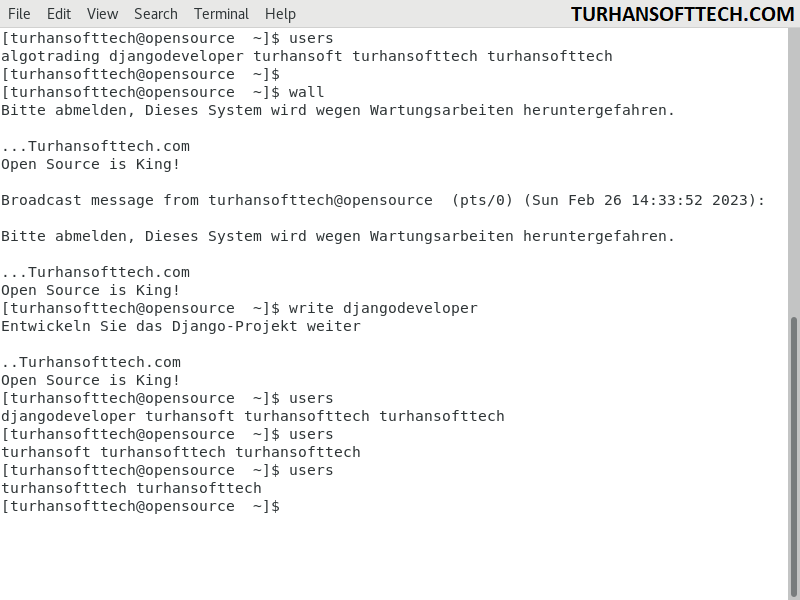
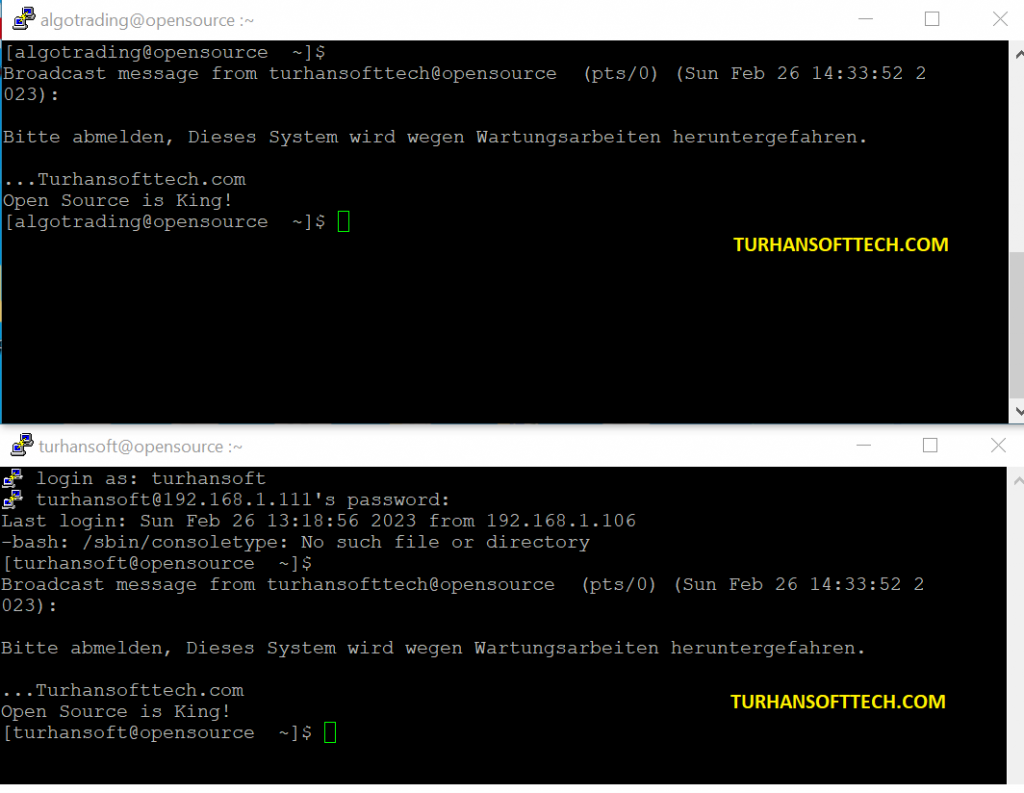
User to User Communication in Linux
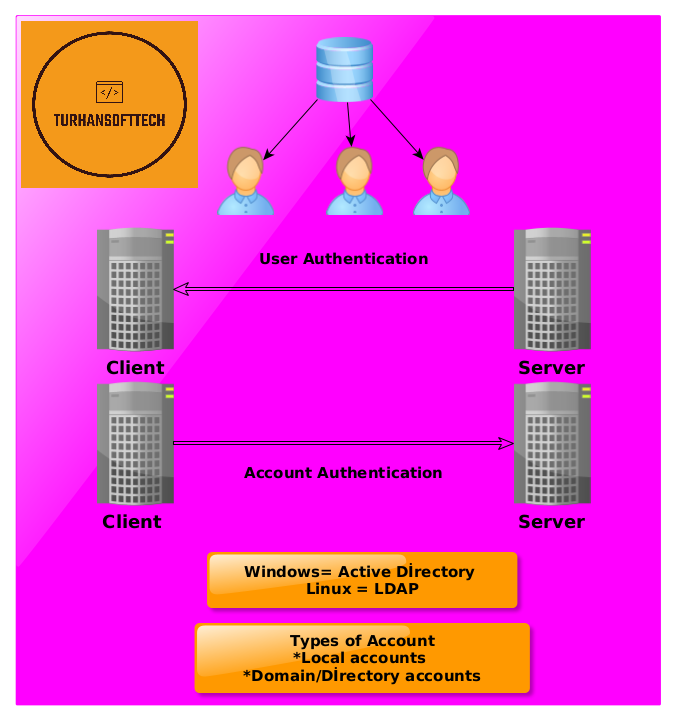
Linux Ldap Authentication Active Directory etc.
Difference between Active Directory , LDAP , IDM , WindBIND
Active Directory is a Windows-based directory service for managing network resources, LDAP is a protocol for accessing directory services, IDM is a comprehensive identity management solution, and Winbind enables integration between Linux/Unix systems and Active Directory. These technologies can be used together or independently, depending on the specific requirements of an organization’s network environment.
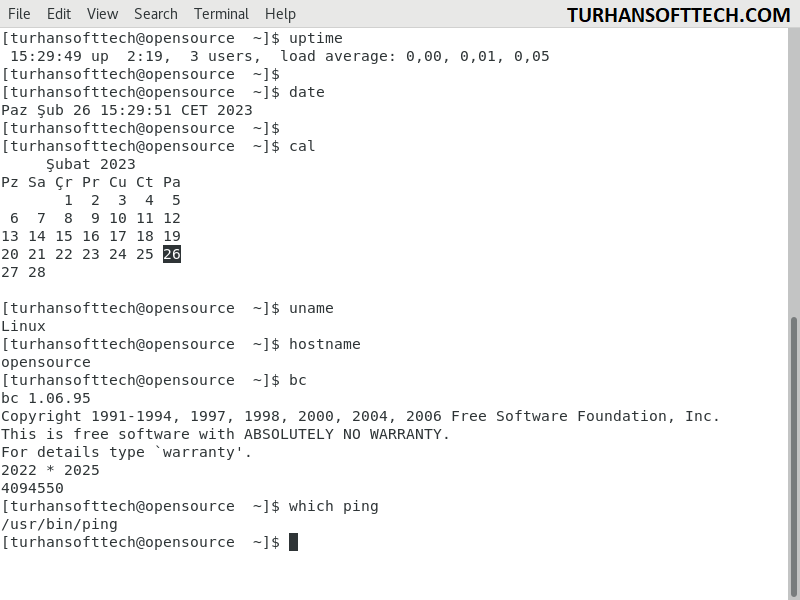
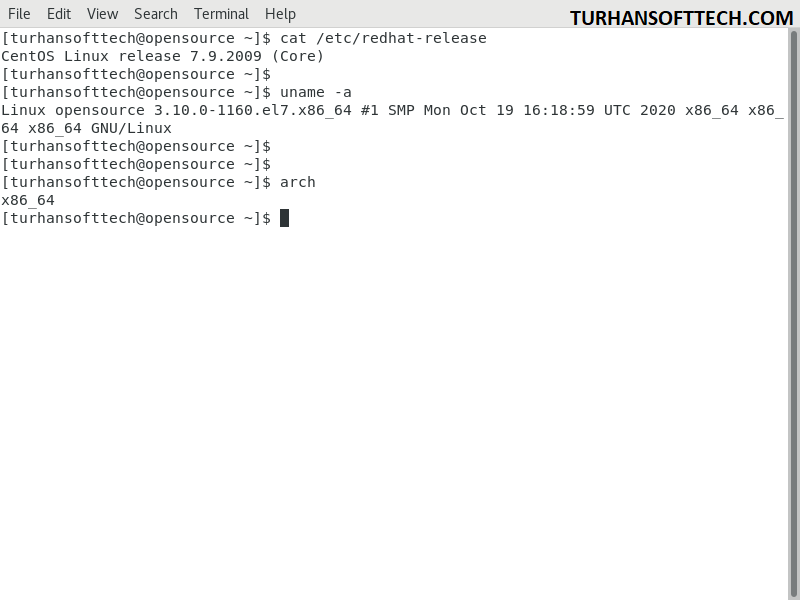
System İnformation Utility Command in Linux
Processes and Jobs in Linux
Process / Services Commands
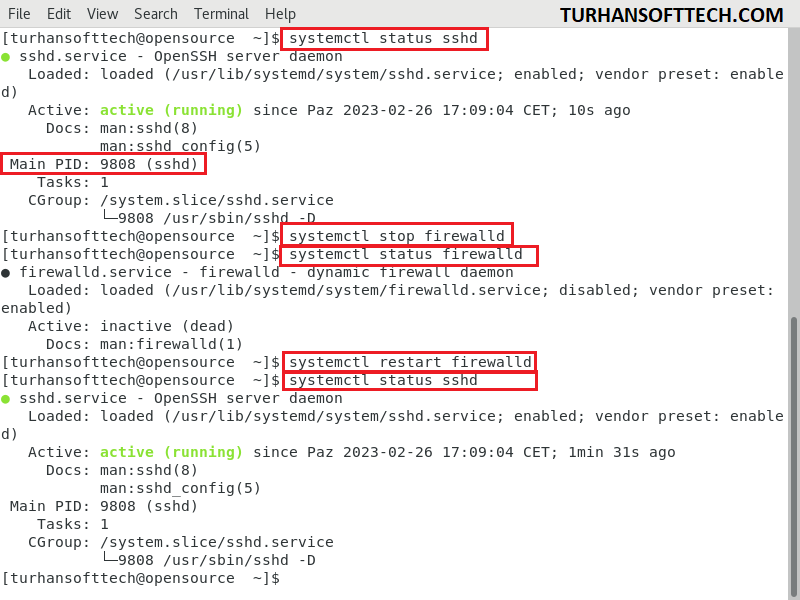
systemctl Command in Linux
systemctl
systemctl status firewalld.service
systemctl stop firewalld.service
systemctl status firewalld.service
systemctl disable firewalld
systemctl status firewalld.service
systemctl list-units
systemctl list-units --all
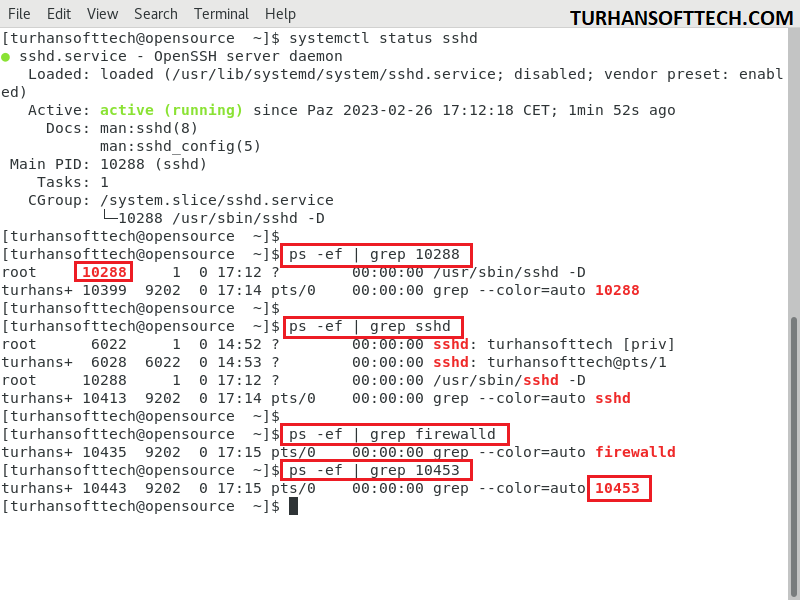
“ps” Command
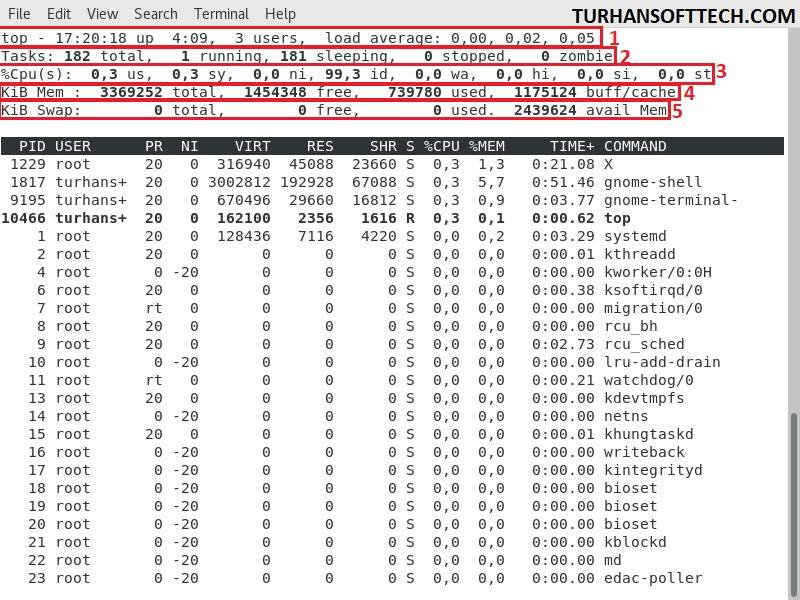
“top” Command
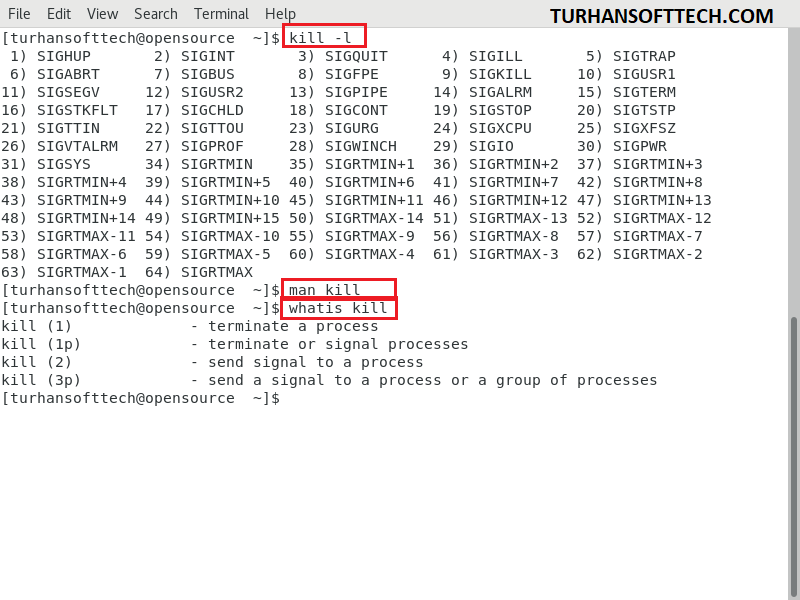
“kill” Command
“crontab” Command
Users of Linux and Unix-like operating systems can create, edit, and manage their cron jobs using the command-line utility Crontab.
* * * * *
| | | | |
| | | | +----- Day of the Week (0 - 7) (Sunday = 0 or 7)
| | | +------- Month (1 - 12)
| | +--------- Day of the Month (1 - 31)
| +----------- Hour (0 - 23)
+------------- Minute (0 - 59)
Command
Description
crontab -e
Edit the current user’s crontab file using the default text editor.
crontab -l
Display the contents of the current user’s crontab file
crontab -r
Remove the current user’s crontab file.
crontab -i
Prompt for confirmation before removing the crontab file.
crontab -v
Display the last time you edited your crontab file (This option only available on a few systems.)
Crontab Example
A line in crontab file like below removes the tmp files from /home/someuser/tmp each day at 6:30 PM.
30 18 * * * rm/home/someuser/tmp/*
Crontab File Location
Mac OS X
/usr/lib/cron/tabs/
BSD Unix
/var/cron/tabs
Solaris, HP-UX , Debian, Ubuntu
/var/spool/cron/crontabs/
AIX , Red Hat Linux , Centos , Fedora
/var/spool/cron/
Crontab Environment
Cron invokes the command from the user’s HOME directory with the shell (/usr/bin/sh) cron supplies a default environment for every, shell defining.
By default cron jobs sends a email to the user account executing the cronjob. If this is not needed put the following command At the end of the cron job line.
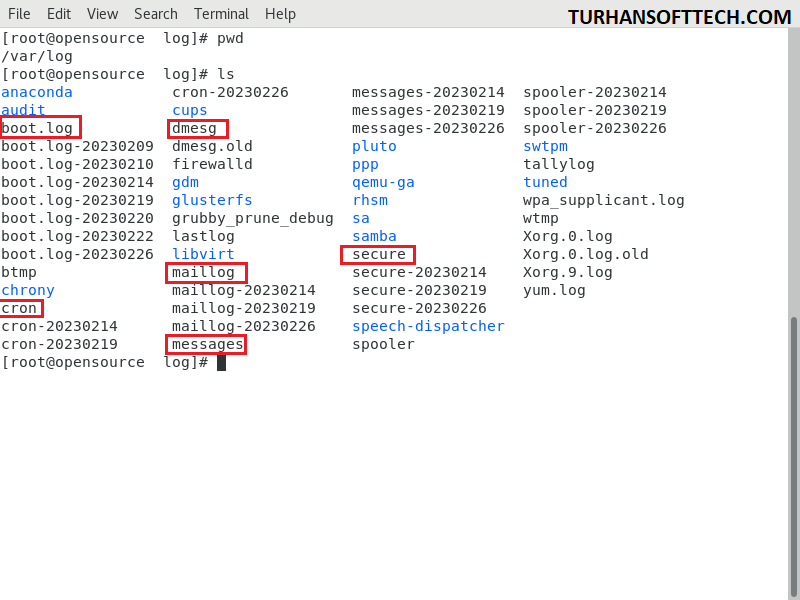
cd /var/log
ls -l boot.log
more cron
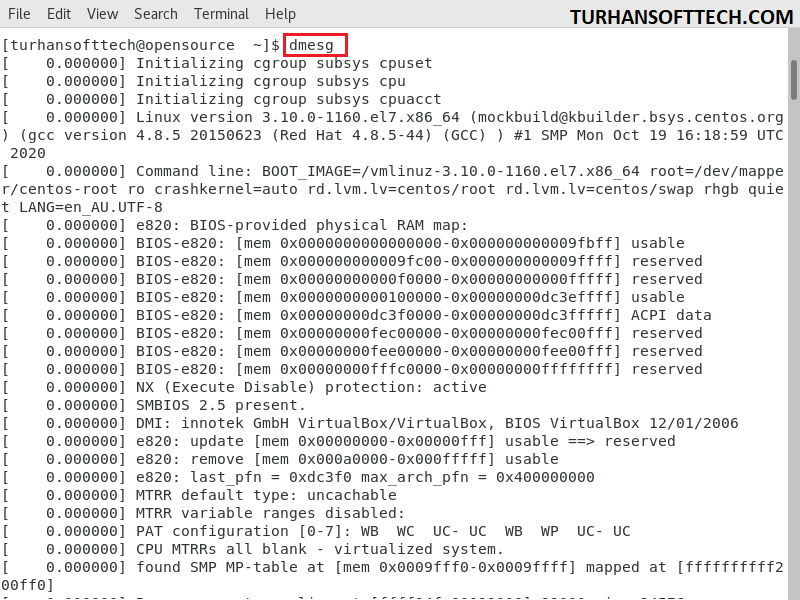
cat dmesg     #su - sudo su root
more maillog
more secure
tail -f secure
more messages
grep -i error messages   #su - or sudo su root account
ls -l | grep chrony
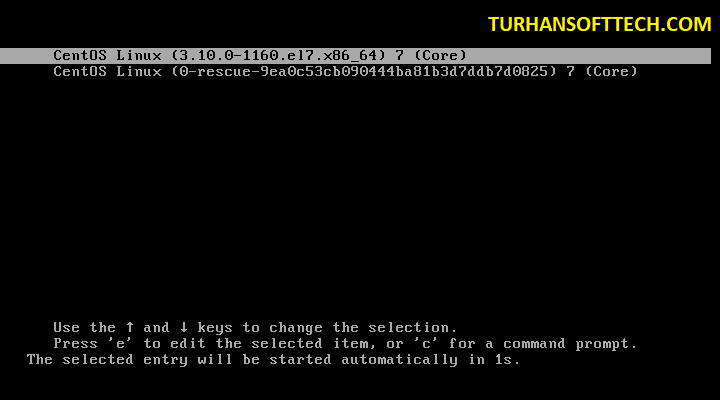
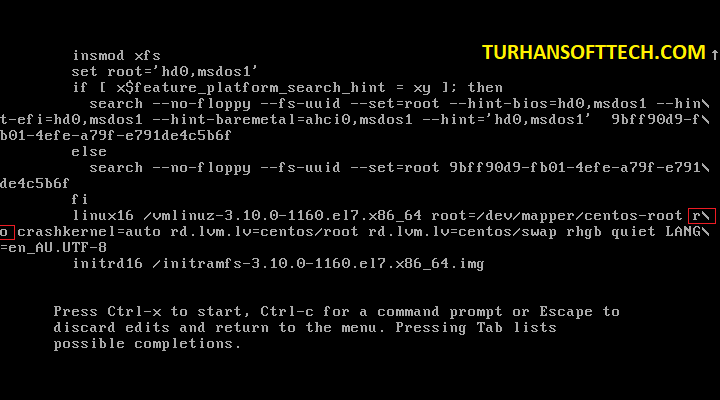
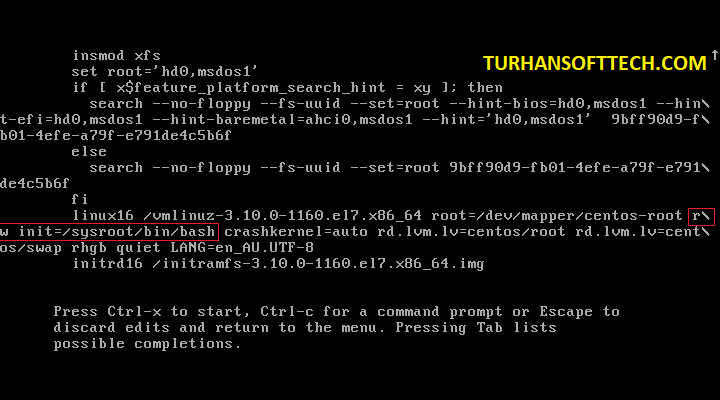
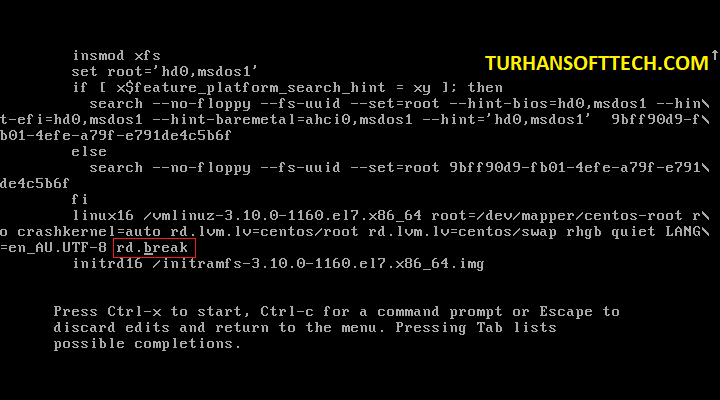
Go to the line = ro and change it with rw init=/sysroot/bin/sh
Now press Control+x to start on single user mode
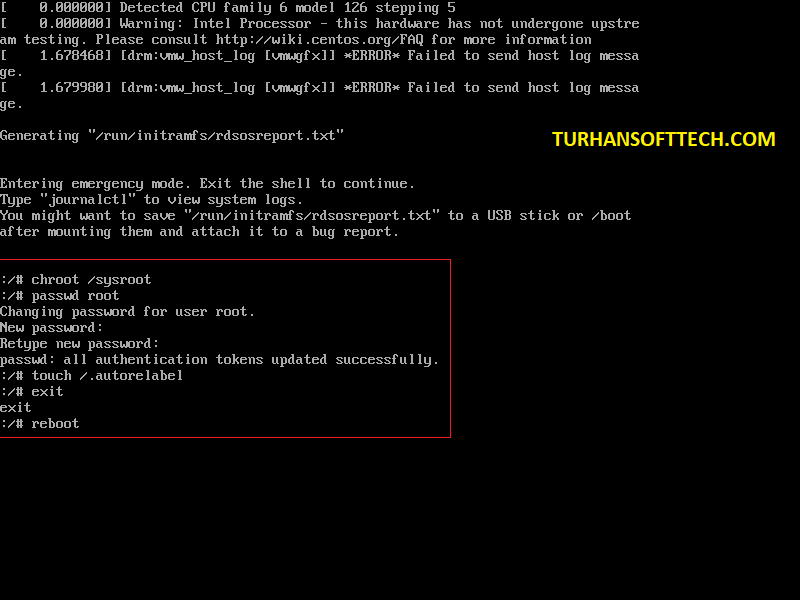
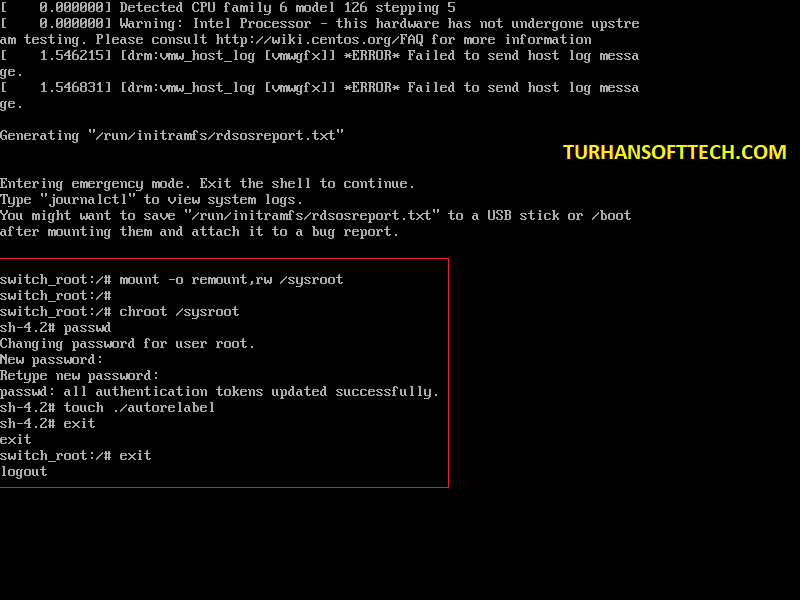
Now access the system with this command ( chroot /sysroot )
Reset the Password ( passwd root )
Exit chroot ( exit )
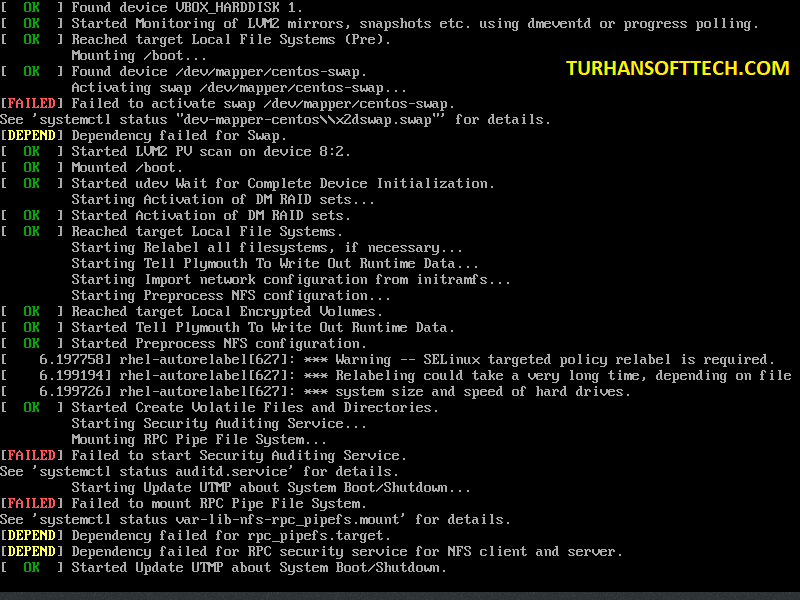
Reboot your system ( reboot )
Method 2 :
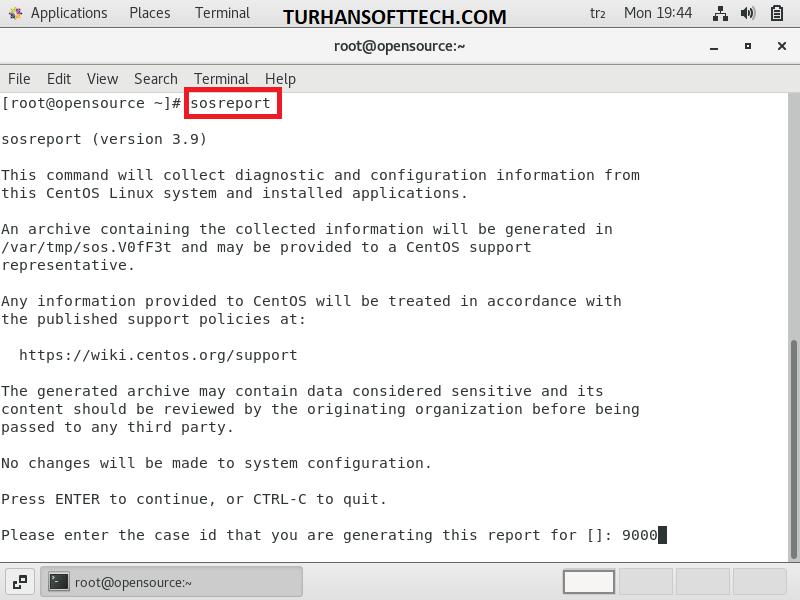
SOS Report
Environment Varibles
printenv
printenv | more
env
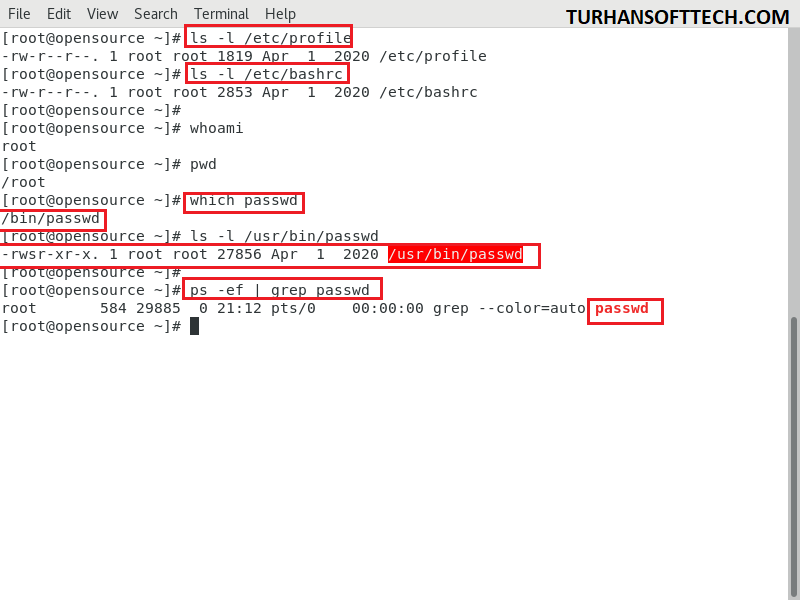
find /  -perm  /6000
Special Permissions with setuid , setgid , and sticky bit
Setting the setuid permission:
chmod u+s filename
Setting the setgid permission:
chmod g+s filename
This command sets the sticky bit on the specified directory. Only the owner of a file within this directory can delete or rename the file, even if other users have write permissions on the directory.
The specified file, filename, is given the setgid permission by this command. Instead of using the user’s primary group, the file will be executed under group ownership.